Archive for the 'Reviews' Category

Computing, Reviews, tech

New AT&T DSL Service, Actiontec GT701D Modem

Recently AT&T was running a deal where their 6Mbps DSL service is $20 a month for an entire year, then $45/mo after that (they might still be running it). I was paying about $65/mo for cable modem service through Comcast, so even after buying the modem, this will save me about $500 the first year, and $240 every year thereafter. Slightly slower service, but really that’s a no-brainer for me.

The default modem that AT&T recommends is the Motorola 2210. According to all reviews I’ve read about this modem, it overheats and dies a little over a year after setup. So searching for alternatives, I found the Actiontec GT701D, which (as an added bonus) was also $30 cheaper. The only downside is that AT&T tech support can’t help much with the setup. I figure I’m handy with computers, so I’ll take the gamble on the cheaper and better modem.

Short story: everything worked out fine (eventually) and now I’m on my DSL connection.

The Actiontec didn’t initially connect up with the automagic detection, so I had to do a bit of snooping. It’s a very good thing that I still had my old ‘net connection running, to do some Google Fu. After a bit of searching I found the right settings. For anyone else out there in this situation, here’s what those settings are:

Username: attreg@att.net
Pass: attreg
VPI: 8 (this is for AL, FL, GA, KY, LA, MS, NC, SC, TN; other states use 0 for this)
VCI: 35
DSL Mode Setting: ADSL2
ATM QoS class: UBR

Note that the username/password are only for initial setup. You have to go to the registration URL to set up your real username/password. But do note that the password you use for your modem is the alphanumeric string that gets automatically assigned to you, not the one that you type in yourself.

Reviews, tech

iPhone 4 Preliminary Review

I got my iPhone 4 a day early (thanks to ordering it through the Apple website), and have taken some time to try out its features. I’m coming from a 3G though, not a 3GS, so this thing is probably more impressive to me than it would be to someone with the latter.  So, review below, with important parts in bold.

General Feel

This thing is way more responsive than the 3G. Then again, the iOS 4 did seem to speed up my 3G a bit too, but it was still fairly laggy for most things. The iPhone 4, however, feels just about as snappy as the iPad (which is to say very snappy).

The battery life seems good.  The first day I used it more than moderate but less than heavy/constant, for about 8 hours — recorded maybe 6 minutes worth of video, lots of app downloading and use, compressed a couple of videos and sent them to YouTube, etc. I also had WiFi and Bluetooth on. That used up about half the battery, which is nothing magical, but still pretty impressive. Second day, with a bit of talking, Bluetooth turned off most of the day, and medium to light usage, between 10am and 6pm the battery is at 70%. Not too shabby.

I didn’t think that I was going to even notice the snazzy “Retina” display that packs tons of pixels in tightly, but I actually do notice things being much more crisp.

Form Factor

I’m not in love with the design, but I don’t hate it either. It is rather annoying that accessories that I bought for my 3G (like case/protector, car dash mount, etc.) won’t work with the iPhone 4. It is thinner though, which is subtle but can still be noticed, and I like the design of the buttons — raised and separate.

The smudge-resistant glass actually works fairly well. Well enough that the smudges that do show up are subtle, and get cleaned off completely when I put the phone in my pocket and take it back out again.

Video/Photos

The camera does seem to take better low-light pictures from my preliminary tests, though nothing magical — you’re not going to get great low-light photos from any smartphone with current technology. That’s mitigated by the flash though; the LED flash does seem to help a lot. The general picture quality of the front-facing (main) camera is quite good. About as good as a point-and-shoot camera in fact. I took the picture on the left last night (click on it to see the full-sized version). It was enough of a close-up that I had to tap to focus.

Video quality is good, though holding the phone in your hand to take video isn’t the most natural thing in the world. It also disappointed me to discover that you can’t switch between the front and back cameras when recording video — it’s either one or the other.

There is also a built-in utility to upload to YouTube. On the downside, it downsamples to 320p, so no uploading hi-def videos directly to YouTube from your phone. On the plus side, that means it doesn’t take a year and a day to upload videos. I’d like the ability to control this.

The rear-facing camera seems pretty decent. Not as swank as the front-facing camera, but definitely good enough for basic self-photos. One thing that would have been nice is a fake flash for this. I bet someone will make an app for that — something that makes the screen mostly white but shows just enough of what the front camera is seeing so that you can tell what you’re taking a picture of.

iMovie

iMovie is pretty basic, but a cool toy. It allows you to do some very simple video editing like adding a single non-DRM song as background accompaniment to your video project, mesh multiple videos and/or photos together (with some basic transitions), add a Ken Burns effect to your photos, and add a title to your video.

Things that I think that I should be able to do in iMovie, but can’t:

  • Set the volume level of the music clip.
  • Set the music clip to start somewhere other than the beginning of the video.
  • Make the music clip start somewhere other than the beginning of the song (so I can start playing at the good part of Final Countdown, for example).
  • Crop the music clip, to make it stop playing when I want it to.
  • Insert a title over a photo (it can only be added to a video clip as things stand).
  • Add multiple music clips.
  • Insert an image into the middle of a movie clip, so that the clip pauses to show the photo, then continues.

Here’s a link to a quick clip I tossed together of Link at White Wolf | CCP getting “iced” at work, video taken on iPhone 4 and edited with the iMovie app.

Miscellaneous

You lose reception if you hold the phone in your left hand. This is apparently a known issue, and Apple’s reaction has been less than reassuring. I’m not sure if this can be fixed (without a recall of some sort), and it’s pretty astounding that it got through Apple’s QA. I’ve heard that this issue is also fixed by using the bumpers that Apple sells, so I assume that when protective cases come out those will solve it too. So while it’s certainly a bad flaw, functionally it won’t affect most people. I’m assuming that most people will use a case anyway — otherwise the screen is at risk of breaking if you drop it.

The voice commands are new to me, since I didn’t have a 3GS. They seem to work fairly well — not much better or worse than your average voice command system.

Conclusion

The iPhone 4 is definitely a worthy upgrade from a 3G. If I had a 3GS… maybe not so much better that it’s worth another 2 year contract and $299. Probably not worth it, really. In fact, I’d probably have been better served to get the discounted 3GS, but I’m a technophile and have to have the latest and greatest. The camera quality is great, the phone itself is responsive, and though it’s definitely not the perfect phone, I am quite glad that I upgraded.

Reviews, tech

iPad Follow-Up: Thoughts, Apps, Etc.

I really do like this thing. I’ve actually got myself a messenger bag (i.e. man-purse) just so I can tote it around, in fact.  I plan on getting a stylus for it, since I think its note-taking abilities will be rather keen.  Who needs a moleskine?
As an update on the PC charging issue, most motherboard manufacturers have resolved this issue.  My manufacturer (Gigabyte) even came out with a quick-charge update to charge the iPhone and iPad even faster.  Huzzah!  However… it still doesn’t actually charge when I hook it up to my system.  Boo!  Might be that I’ve got too many other USB accessories plugged in.
Speaking of accessories, I would very much like a case that both stands up, and also has some internal pockets for holding papers, cards, or whatever.  These two features seem to be mutually exclusive from what I’ve seen, but there’s no reason it can’t be done.
Okay, on to some apps that I like:
  • NetFlix – This is probably what I’ve been using it for the most.  Kick back in bed, watch an episode of Avatar the Last Airbender.  This also seems to work well over 3G, not just WiFi (though I’ve only tried in areas with full-bars of reception).
  • GoodReader – GoodReader iswas a mandatory app if you plan on reading PDFs on your iPad. However, iBooks is going to handle PDFs soon, so I’d wait to see how well that works before shelling out money for GoodReader.
  • HarborMaster – Neat little strategy game, that’s free. Well not really “strategy” — you have to direct different boats into different ports, and then back off the screen, without letting any crash into one another. It’s harder than it sounds.
  • Dropbox – File syncing service, which is also accessible via iPad. I’ve found this quite useful for work.
  • EverNote – Not nearly as useful without having a camera, but still a great application for compiling random notes. A favorite amongst people of the GTD philosophy.

And the built-in photos app is just too cool.  Check out the demo here (Photos is the third one down, my favorite bit is about 2:40 in).

Really the big feature is the 3G connection though. I’ve found this useful enough for work that even if they hadn’t got me one, knowing what I know now I’d have bought one myself.

Reviews, tech

Review: iPad

Work got me an iPad 3G, since a lot of our customers are likely to use one, and it would behoove us to have some on-hand to look at issues ourselves. It arrived Tuesday, and I’ve been putting it through its paces since then. Short version is, the more I use it, the more I like it. I’m sort of on the fence right now as to whether I’d actually buy it if work didn’t get it for me, but currently leaning toward “no.”

The Good

  • Interface – Nothing notably new here if you’re used to the iPhone/iPod Touch interface. Apple is really, really good at designing user interfaces. However, being on a bigger screen, all the apps feel like grown-up versions. The music player is more like the full iTunes, email is a lot more usable.
  • Speed – It’s fast. Notably faster than my iPhone 3G. Very responsive; it loads up apps quickly, and there’s very little delay in rotating the screen when you change orientations.
  • Music Player – Very close to the full iTunes experience, thanks to the extra room.
  • Battery Life – This seems to be pretty darn good, though maybe I’m biased because the iPhone has such crappy battery live. More testing will be required, but after a couple of days of moderate use (I’d say maybe 5-6 hours total) it was down to about 60%.
  • No Contract 3G Service – $30/mo for unlimited wireless Internet, $15/mo for 250 MB, and you can change that up or cancel it any time you want. Not exactly cheap, but not an arm and a leg either, and no contract.
  • Speedy Push Notifications – Though sometimes it’s about even, my iPad usually gets push and email notifications notably faster than my iPhone. E.g. when I get a new email via Gmail, my iPad usually knows even before my desktop web browser does, and maybe 10-15 seconds before
  • Full GPS – The 3G model has a full GPS chip. I’ve heard reviews that have said it seems to take a little longer to lock on than the iPhone 3GS, but that once it does it seems to hold the signal better. I’ve only used this a little, but it seems to work very well. I could definitely see using this as a replacement for a car stereo and GPS.

The Bad

Too much blank space between icons

Most of these things are really more “annoying” than bad. But I wanted to use the good, the bad, and the ugly as my headlines, so shut the frack up.

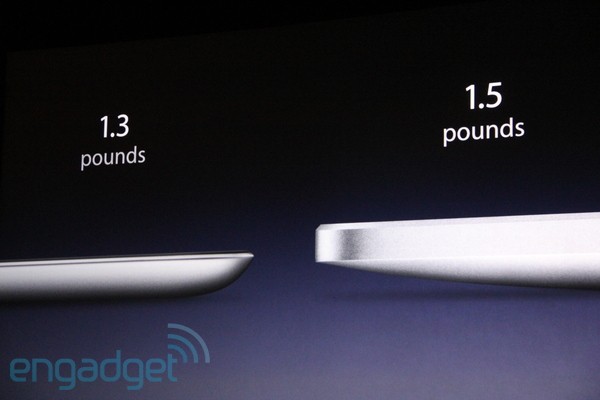
  • Weight – Its heavier than I thought it would be. Wihch isn’t to say it’s a brick, but it’s definitely solid. I can see this causing a bit of arm fatigue if you’re trying to hold it up for more than a minute or two.
  • Whitespace – One area where the interface doesn’t shine. The homescreen seems to have lots of empty space. The app icons should either be closer together, or larger, or some combination of the two. See picture.
  • Fingerprints – Like the iPhone, this thing is bad at collecting fingerprints.
  • Recharge Time – Probably due to having a bigger/better battery, the recharge time is a lot longre on this than I’d expected.

The Ugly

  • Audiobook Transfer – This is really odd and unintuitive to someone who’s used an iPhone. Instead of transferring audiobooks with your normal audio files, you transfer them as you do eBooks. When I first tried transferring, I noticed that the audiobook playlist I had didn’t even show up as an option for syncing. I added a non-audiobook file to it and it showed up, but when I synced the playlist it only transferred that one music file, not the audiobooks. Only after some searching the web did I find that you have to use the Books tab from iTunes on your computer, scroll down, and select audiobooks there.
  • Can’t Recharge From Computer – When I connect the iPad to my computer via USB, it lists “Not Charging.” Apparently you can only charge your iPad from either a wall outlet, or from a Mac. PC users are out of luck. This is a pretty bad issue.

Computing, Reviews, tech

Computer Building Fun

Two tools I really didn’t think I’d need for building a system: needle-nosed pliers, and a file. Where the hard drive went in, there was a retaining bracket that was preventing a hard drive screw from passing, so I had to bend it. And when I replaced the case fans with better and quieter ones, the size on the front one was off by a fraction of a millimeter, which required filing off the plastic around where it went in.

However, this time no blood was spilled. I think that might be a first. So, I consider it a success!

I also remembered how annoying it can be to build a system. I got a power source that can handle 2 video cards (“Crossfire capable” they call it, for ATI cards), but the kind I got took both of the power connectors. So I can’t actually use 2 without upgrading my power source. Talking to NewEgg about that, but so far no luck asking for an exchange.

Also, I remembered a little hack for installing Windows clean, using an upgrade disc. You can use an upgrade version as the full version in one of two ways when installing it fresh (i.e. wiping whatever is already on there, if anything: install it fresh and then install it over itself, or (the quicker, easier way) do a simple registry edit.

Something else I realized: I have a Logitech Performance MX wireless mouse (no, I did not just realize this, shut up). It is pretty awesome, but my only complaint has been that it will randomly stick, and for 30 seconds or so it stutters and jumps around the screen when I try to move it. Today I tried something that seems obvious: I moved the damn wireless receiver to a USB port closer to the mouse. Guess what? No issues since then. I know, I’m a frackin’ genius.

Okay, so how does the shiny new system work, you ask?

It’s fast. Very fast. I attribute almost all of that to the SSD. That’s a solid-state drive; a hard drive with no moving parts. They are expensive, for much less space than you will get with a normal hard drive, but they are about twice as fast, 1/4 the size overall, use far less power, make no noise, and emit almost no heat. For laptops, they are about the most awesome thing you can have. For desktops, still quite awesome.

One not-fast bit is logging into Windows. It gets to the login screen, I enter the password, then… it sits there for 20 seconds before continuing. I’m not sure why this is, and I don’t think it initially did it. But it doesn’t happen when I’m waking the computer from sleep or hibernate, and I almost never have cause to do a full power-off or reset, so that’s not really a big deal.

The only other pet peeve I have is that, even though there is a connector for it, the case has no hard drive activity indicator light. And since the SSD is even more silent than a ball-gagged ninja, there’s no way for me to know when lots of hard drive access is going on. I mainly look at this when the system seems to be randomly crunching/slow though, and since that hasn’t yet happened… I can live with it for now.

My work-oriented stuff is very fast as well. We use Subversion, a system that lets multiple people work on the same code at the same time without stepping on each other’s toes, and it also retains a complete history of every change ever made to the code, so that you can roll back if you screw something up. Performing updates and commits with this is very notably faster than it was on my old system (also a quad-core system, with 5 GB of RAM).

Reviews, tech

Review: Blueant Q1 Bluetooth Headset

This year for Christmas, my girlfriend got me a BlueAnt Q1 bluetooth headset.  Yes, I know… all girlfriends should be that awesome.  I’ve owned the BlueAnt Z9 in the past, and I liked its performance a lot, though I wasn’t too fond of its look.  Well, that same military grade noise-cancellation technology (or “voice isolation” technology as BlueAnt calls it) is present in this model, plus the voice-activated commands of their V1 headset, except in an attractive package.  Actually, it looks a lot like the Jawbone, which I’ve also owned.  I like this a lot better though.

I’ve only had it for a couple of days, but so far I give it an 9/10.  The only bad things I’ve noticed about it are minor annoyances, and some might even be fixed in the latest firmware (which I can’t upgrade to; see The Bad).  In a nutshell:

The Good

  • Good audio quality, both outgoing and incoming.
  • Comfortable fit.
  • Noise cancellation works rather well (though I need to do some more testing). Update (Jan 1st, 2010): After further testing (windy conditions, radio blaring), same conclusion — works very well, though not perfectly of course.
  • Comes (semi-)pre-charged, so that you can plug it in and go immediately upon opening the box.
  • Voice commands work well (haven’t tested trying them in windy/noisy environments yet though).  Update (Jan 1st, 2010): Tried the voice commands with loud background noise going on, still works fine.
  • The firmware is upgradeable, so as they fix things and come out with new features, you can get those.
  • There is caller ID, or as good as it can get on a headset — it tells you which number is calling.

The Bad

  • The firmware updating software isn’t yet compatible with 64-bit flavors of Windows.
  • After going out of Bluetooth range for more than a few seconds, it won’t automatically re-connect when you’re back in range (you have to restart the phone).
  • Whenever any audio stream cuts off, it says “call disconnected.”  This also happens when, for instance, you’re listening to a voice mail, and the voice mail ends.
  • Setting up speed-dial numbers requires that you receive a call from the number you want to add.
  • Charges via proprietary connector, instead of mini-USB.

These are only the things that stand out.  Its battery life is about average.  It paired up with my iPhone 3G with no problem (actually it didn’t even require the “0000″ password like older Bluetooth units do). Its weight feels about the same as a Jawbone, packaging was similar to that of a Jawbone.  Basically, it seems like they took the Jawbone, tweaked it a bit, and used their own noise cancelling technology.  Which is fine by me.

Voice Isolation Technology

This is really one of the two headliners for this unit.  The BlueAnt headsets boast background noise cancellation technology as good as that of the Jawbone.  It actually works better for me.  The Jawbone uses an induction technology — basically, it has a little nub that sits on your cheek and senses the vibrations.  However, it doesn’t have a good fit and I have a somewhat thin face, so it never rested on my cheek… which meant that unless I used one hand to hold it there, it wouldn’t pick up my voice and I was effectively on mute.

The Q1 uses a different strategy.  It has 2 microphones, one facing your mouth and the other facing outward.  I’m not 100% sure of the details, but my engineering mind imagines it works thusly.  First, it boosts noises that are significantly louder on the primary microphone (that faces your mouth) than the outward-facing one.  Second, it filters out frequencies that are outside of the human vocal range.  Third, it precisely times the difference between when a sound reaches the two microphones.  Using this time difference, it can tell the general direction of where the sound came from, and can therefore filter out sounds that don’t come from the direction of your mouth.

With a previous BlueAnt (the Z9), I was once in O’Hare airport talking to a friend, trying to coordinate transportation.  She said that she couldn’t hear me because of the background noise, and I realize I’d forgotten to turn on the voice isolation.  So I turned it on, and her response was, “Wow.  It sounds like you just walked into a quiet room.”  I’ve also tested while walking by a construction worker using a loud saw, in traffic, etc.  This technology does what it says.

Below is a test I ran by calling my own voicemail.  With the voice isolation on max, I did still notice a bit of background noise from the music vocals, probably from the speaker that was right in front of my face, but the unit still did a very admirable job.

Yes, I am playing the Numa Numa song in that test.

Voice Recognition

This is the main shtick of this headset. When you first turn it on, it walks you through some instructions telling you how to pair it up, and how to use it.  You really never do need to even look at the instruction book.  When someone calls you, you can say “answer” to answer it, or “ignore” to ignore it.  (You can also do this via the headset’s buttons as a failsafe.)

Before giving any voice command, press the multifunction button once and it will prompt you for a command.  If you want to go into pairing mode, say “pairing mode.”  If you want to dial the 4th number in your phone’s speed-dial, say “speed dial 4.” If you want to check the battery,  say “check battery” and it’ll tell you the status (high/medium/low) of the headset, and of the phone.  And whenever you give an instruction, it confirms which instruction you gave it, which is nice.

And if you’re not sure what you can say, just ask, “What can I say?” and it will tell you.

All of the voice commands have worked spectacularly for me, with a few caveats.  First, I haven’t tried them in noisy or windy environments.  Second, you do have to remember the voice commands, or it will misinterpret you.  If you say “battery status” instead of “check battery,” no telling which command it’ll do.  Actually, for me that makes it activate the phone’s in-built voice commands (of which the iPhone 3G has none).

Other Stuff

The overall design of this unit is nice.  The multi-function button depresses easily but with a nice click letting you know you’ve pressed it.  The volume buttons are easy to feel by touch and press, and you get auditory feedback as to which way you’ve turned the volume.  It comes with a variety of ear buds and an optional ear hook, so you can customize your fit.  You can pair it with multiple phones simultaneously, so if you have one work phone and one personal phone you can answer calls from either on it.

Conclusion

I recommend this headset for anyone who needs good background noise cancellation, and anyone who doesn’t like having to remember what pressing a button for 3 seconds vs. 6 seconds does.  If you just need a basic headset though, I recommend getting something cheaper — I’ve always had good luck with the Plantronics Voyager series, myself.

Computing, Gaming, Reviews

Champions Online – Initial Impressions

For my initial impressions, I am going to leave out issues that are obviously bugs — the game doesn’t even officially launch for 2 days, and there really aren’t that many bugs to speak of.  Far fewer than I’ve seen in most products at release these days, in fact.  In any case, this review will be pretty scattershot — a lot of 90 degree turns.  So strap yourself in.

Character Creation

First things first: the character creator.  It’s even better than the one in City of Heroes, which itself was lightyears ahead of everything else I’ve seen.  However, I say “better” with a few caveats.  The Champions Online character creator is lacking some costume basics — for example, there is only one option for an emblem on your back, no option for a trench coat, and other small things of that nature.  It’s also tough to find some of the options; they seem grouped somewhat unintuitively to me (for example, the “Shirts w/Integrated Shoulders” section has no items that have integrated shoulderpieces).  But from my experience with City of Heroes, I know that this will be fixed in time.  I think one of the things they were trying to do was avoid copying City of Heroes costume pieces.  In fact, I’d bet they went to great lengths to do so, for legal reasons.  And with the huge library of things available in City of Heroes, it will be difficult to come up with new pieces that are notably different in Champions Online.

Depth of Play

The game definitely has more depth than CoH.  Around level 5, you start working with the crafting system, in fact.  This is a little too soon for my tastes — I like to just run around and get the basics down for the first hour or two of play, myself.  Were I not already familiar with the CoH crafting system, I would probably be confused by this.  Actually, I am familiar with the CoH crafting system, and I am still a little confused by this.  The main way to build things seems to be by deconstructing items that you get (akin to disenchanting in World of Warcraft), and then using those base components to build something.  You also gain skill much faster by deconstructing things than by building things.

Speaking of level 5, you get a fast-travel power at level 5.  I have not the words for how awesome this is.

Annoyances

This brings me to my first annoyance.  Latency.  This is a huge one.  I’m not talking about real “lag,” but rather when you press W to go forward, it takes about 0.5 seconds to start going.  Same when you let off to stop.  Which isn’t even noticeable when you’re running around normally, but once you get that travel power, it can make you overshoot your target by about 30 feet.

Another annoyance is the aggro range of mobs, which is ginormous.  Actually, I like this in theory, because it seems more realistic.  Seems pretty silly that if you’re thumping some dude’s friend 30 feet away, he’s not going to come over.  However, the problem is that in most of the zones (that I’ve been in so far, anyway), there are mobs strewn about every 30-40 feet.  When you fight one small group, at least one adjacent group generally joins the fray.  This gets really annoying when you’re trying to fight a mini-boss, and/or when you’re about to die and attempting to run to a safe place.  It’s also bad because you can’t pull the camera out very far.  I like for my camera to be out to where I can see around 3-4x the aggro range around me, at least.  Can’t do that here.

Combat and Missions

This is also made more of an issue by the game’s AI, which I must say is fairly good.  If you’re using a bunch of close-range attacks, and your opponent has a ranged attack, then they will generally try to distance themselves.  Villains and sometimes even normal mobs will go out to get reinforcements.  This makes the game feel a lot more realistic than other MMOs I’ve played, and also adds a bit of challenge

The combat system is pretty straightforward, aside from one thing: blocking.  You can press the Shift key to block attacks.  This is very important in a lot of villain fights — there will be a visual indicator (starburst usually) over the villain indicating that some big attack is coming.  If you don’t block, you get walloped for a big chunk.  If you do block, then it’s not so bad.  It makes combat feel more active.  They still need to work on the targeting though; often you find yourself in the middle of a pretty big group, and tabbing through to get to that villain isn’t always feasible.

I really like the mission system overall.  It shows you on the map and minimap exactly where your objectives are, circled in the case of objectives that are in a general area.  When you mouse over it, the mission name comes up you can click on it to open a description of the mission details.  Very nice for keeping track of what you’re doing.  There are also impromptu group missions, that you don’t actually have to group up for.  For example, aliens are invading and when you come near the city defense system, you can jump in and start helping to defend it.  There are several phases to this, with different objectives (defend the cannon, get parts for it, etc.).  When you’re through, it opens up another quest for you, and it also shows you a ranking of who helped the most.  Then the mission resets.

I think this open mission system is really great, because a lot of MMO players frankly aren’t very social.  It can be tedious and annoying to get a group together.  But if you can just jump in and coordinate your efforts, then you skip all of the awkward and sometimes tedious rigmarole of forming  a group.  Plus, it’s very superhero-like to see a situation, then just jump in.

Overall Impression

Overall, the game feels much more superhero-like than City of Heroes.  You can take out the mooks and minions like chaff (unless you do something dumb and really overload yourself), which is thematic.  The game has extremely customizable character aesthetics, even more so than its progenitor.  It’s a lot deeper than City of Heroes, which I hope translates to a more sustainable end-game.